

Settings
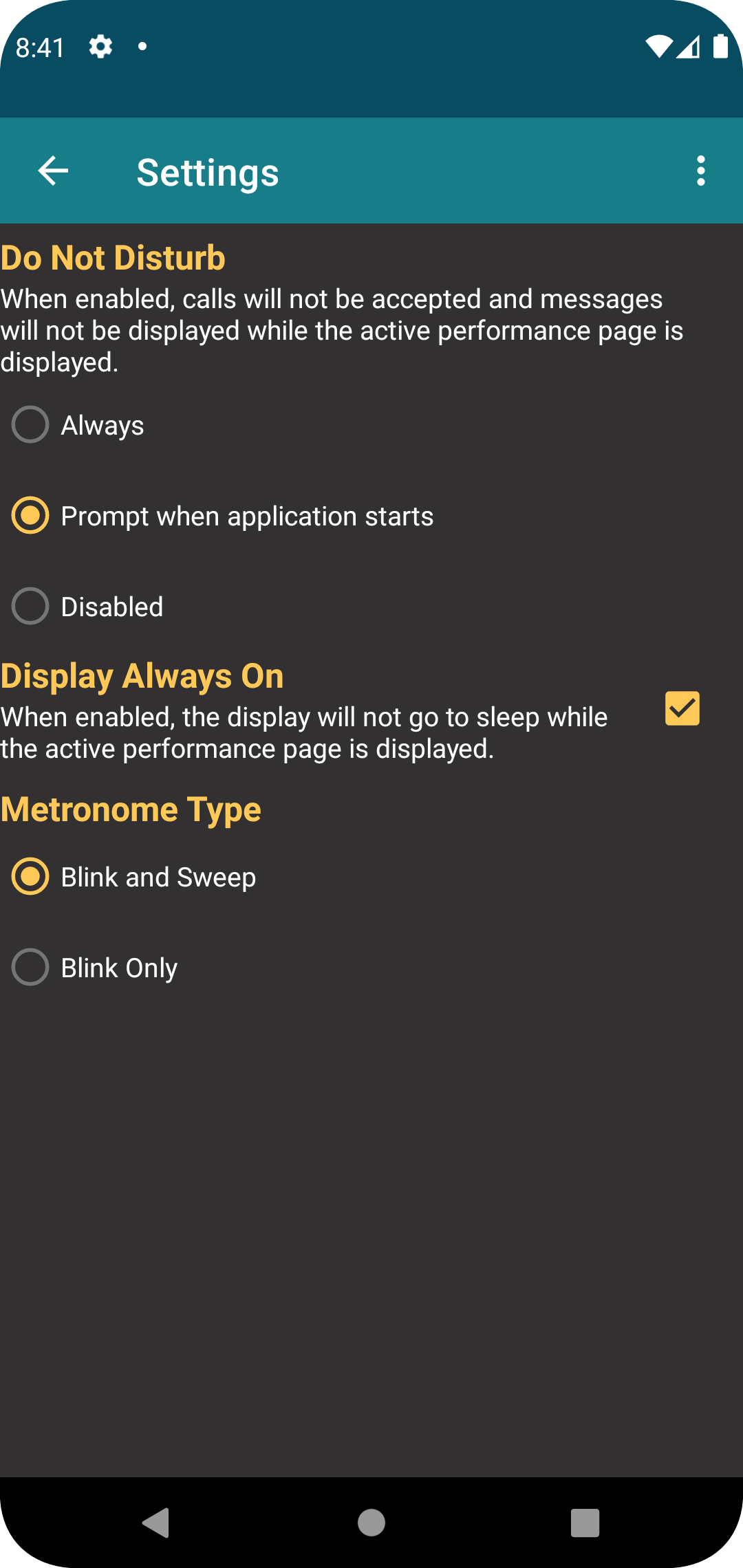
The Settings display is shown the first time the application is started after installation, or whenever Settings is slected from the menu on the main display.
The Do Not Disturb feature allows the application to supress phone calls, message notifications, and anything that might cause the device to make a sound while the application is open and on the main page. This feasture allows you to use the applicaiton on stage without fear of the device interrupting a performance. You can configure the application to always use Do Not Disturb or you can have the application prompt whether or not you want to use this feature. Both of these settings will require the capability to be enabled in Android, and the application will prompt you if this is not set (see below). You may also disable this feature, so that the application will not supress notifications.
The Display Always On feature will keep the device from going to sleep whil on the main page. This ensures that the display does not turn off on its own at any time during the performance. This will consume more battery power. If disabled, the display will turn off based on the devices configuration with respect to battery power settings.
You may leave the settings at the defaults or make changes to meet your needs, which can be modified at any time in the future. Hitting the back button will move on to the next steps. If you set the Do Not Disturb option to anything but Disabled, you will need to grant premissions in for this capability in Android. When you leave the settings screen you will be prompted to this in a pop-up dialog.
The metronome appearance can be set to with or without a sweep to indicate tempo.
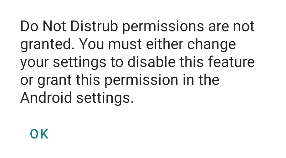
If Do Not Disturb is enabled in the application but Android permission has not been granted, you will see this dialog. When you press OK, you will be taken to the Android settings to grant permission to Perc Notes. If permission is not granted the application will not allow you to move forward, so you must either grant permission in Android or disable the feature in Perc Notes.
The Android settings dialog for Do Not Disturb will look similar to this. You must find Perc Notes in the list and enable the feature. You may see prompts asking if you are sure you want to grant this capabilitly. You can revoke permission for Do Not Disturb and disable it in Perc Notes at any time.
